Why Enable Developer Options & USB Debugging?
Hidden behind a simple tap sequence, Developer Options unlocks pro-level controls on any Android device. Whether you want to:
- Speed up animations (make your phone feel 2x faster)
- Sideload APKs via ADB
- Root your device (advanced)
- Debug apps as a developer
…this is your gateway.
USB Debugging is the secure bridge between your phone and PC required for tools like Android Studio, scrcpy, or custom recovery flashing.
Security Note: Only enable when needed. Disable after use.
Step-by-Step: Enable Developer Options (All Android Devices)
Works on Android 12, 13, 14, 15 | Samsung, Google Pixel, Xiaomi, OnePlus, Realme, etc.
- Open Settings
- Scroll to About phone (or About device)
- Find Build number
- Tap it 7 times quickly
- You’ll see: “You are now X steps away from being a developer”
- After 7 taps: “You are now a developer!”
Developer Options is now unlocked
How to Access Developer Options
- Go back to Settings
- Look for:
- System > Developer options (Google Pixel, stock Android)
- Additional settings > Developer options (Samsung, OnePlus)
- About phone > Developer options (some Xiaomi/Redmi)
Tip: Can’t find it? Use the search bar in Settings: type “developer”.
Enable USB Debugging (The Key Setting)
Inside Developer options:
- Toggle Developer options ON (if not already)
- Scroll to Debugging section
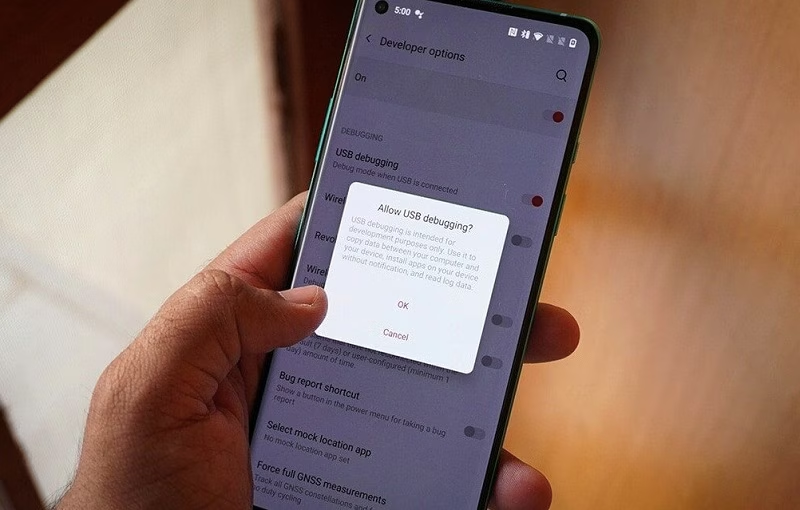
- Enable USB debugging
- Confirm “Allow USB debugging?” → OK
Done! Your phone is now ready for ADB commands.
Pro Tips After Enabling Developer Options
| Feature | How to Use | Benefit |
|---|---|---|
| Animation Scale | Set Window/Transition/Animator to 0.5x | Phone feels snappier |
| Force Dark Mode | Enable Override force-dark | Dark theme on any app |
| Default USB Config | Set to File Transfer (MTP) | Faster ADB/file access |
| Stay Awake | Enable while charging | Screen on during debugging |
How to Disable Developer Options (Security Best Practice)
- Go to Developer options
- Toggle the main switch OFF
- (Optional) Clear data of Settings app to hide the menu completely
Warning: Never leave USB Debugging on public/wifi charging stations.
Common Questions (FAQ)
Q: Is it safe to enable Developer Options?
Yes, it doesn’t void warranty or harm your device. Just don’t change unknown settings.
Q: USB Debugging grayed out?
- Restart phone
- Update Android
- Try a different USB cable/port
Q: Works on Samsung Galaxy?
Yes! Same 7-tap method. Menu is under Settings > Developer options.
Final Checklist
- [ ] Tapped Build number 7 times
- [ ] Found Developer options in Settings
- [ ] Enabled USB debugging
- [ ] Connected to PC → “Allow debugging?” → Always allow from this computer