Why Enable One-Handed Mode on Android?
In 2025, smartphones are bigger than ever – think 6.8-inch Galaxy S25 Ultra or 6.7-inch Pixel 9 Pro. But reaching the top of the screen with one thumb? Nightmare. One-Handed Mode shrinks the entire UI to the bottom half (or one side), making it thumb-friendly without losing functionality.
Key Benefits:
- Ergonomics First: Reduces thumb strain and “text neck” during quick checks.
- Works Everywhere: Apps, notifications, even multitasking stay accessible.
- Battery Neutral: No extra drain; it’s a native gesture.
- Customizable: Timeout, direction, and activation method to fit your style.
Pro Tip: Ideal for commuters, parents, or anyone with a phablet. Pairs great with Gesture Navigation for seamless use.
Step-by-Step: Enable One-Handed Mode (All Android Devices)
Works on Android 13, 14, 15 | Samsung One UI 7, Pixel, OnePlus OxygenOS 15, Xiaomi HyperOS, etc.
(Requires Gesture Navigation enabled – Settings > System > Gestures > Gesture navigation.)
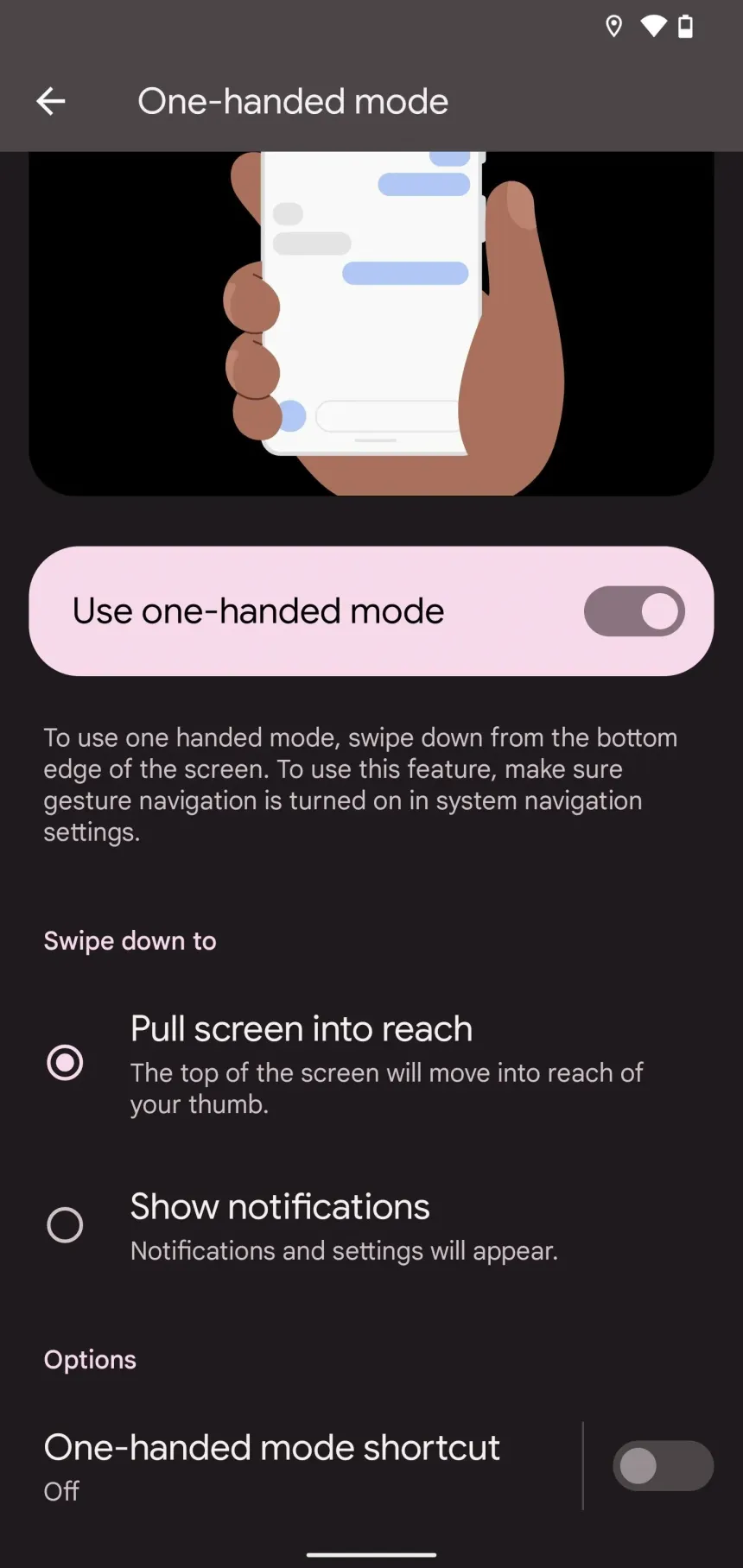
General Stock Android (Pixel, Motorola, etc.)
- Open Settings
- Tap System > Gestures (or search “one-handed”)
- Select One-handed mode
- Toggle Use one-handed mode ON
- (Optional) Add to Quick Settings for instant access: Swipe down twice > Edit > Drag “One-handed mode” tile.
Activate: Swipe down from the bottom center (gesture bar) to shrink the screen. Swipe up or tap the top blank area to exit.
Samsung Galaxy (One UI)
- Swipe down once from top > Tap Gear icon (Settings)
- Scroll to Advanced features
- Tap One-handed mode
- Toggle the switch ON
- Choose activation:
- Swipe (down on home/gesture bar)
- Double-tap home button (if using buttons)
Activate: Swipe down center bottom or double-tap home. Move the shrunken screen left/right via arrow icon.
OnePlus (OxygenOS/ColorOS)
- Open Settings
- Go to Accessibility & convenience > One-handed mode (or search “one hand”)
- Toggle ON
- Set size (40-80% shrink) and timeout (e.g., 10 seconds auto-exit).
Activate: Swipe down on navigation bar. Exit by tapping outside the window.
Other Brands (Xiaomi, Nothing, etc.)
- Xiaomi/Redmi: Settings > Additional settings > One-handed mode > Full screen gestures > Enable.
- Nothing Phone: Settings > Gestures & motions > One-handed mode.
- If missing? Use Gboard’s one-hand keyboard: Long-press emoji key > Left/Right arrow.
Troubleshoot: Not seeing it? Update to latest Android. On older devices, enable via Accessibility shortcuts (hold volume keys).
Pro Tips for Mastering One-Handed Mode
| Feature | How to Customize | Benefit |
|---|---|---|
| Screen Position | Tap arrow icon (Samsung/OnePlus) to flip left/right | Matches your dominant hand |
| Timeout Duration | Set 5-15 seconds in settings | Auto-exits to avoid stuck mode |
| Quick Access | Add to Quick Settings or volume shortcut | One-tap activation anywhere |
| Keyboard Pairing | Enable Gboard one-hand: Settings > System > Languages > On-screen keyboard | Shrinks typing area too |
| App-Specific | Use in landscape? Toggle via Developer Options > “Smallest width” DPI tweak | Fine-tune for games/apps |
How to Disable One-Handed Mode (If It Gets Annoying)
- Go back to the same menu (e.g., Settings > Gestures > One-handed mode)
- Toggle OFF
- Restart if glitches persist (rare on Android 15).
Security Note: No risks, it’s just a display tweak. Won’t affect battery or performance.
Common Questions (FAQ)
Q: Does One-Handed Mode work on Android 15?
Yes! Native in Pixel 9 series and enhanced in Samsung’s One UI 7. OnePlus OxygenOS 15 adds resize options up to 80%.
Q: What if my phone doesn’t have it built-in?
Install Gboard for keyboard mode, or apps like “One Handed for All” from Play Store. For Pixels pre-Android 12, use accessibility volume shortcut.
Q: Is it better than iPhone’s Reachability?
Android’s shrinks the full UI (more versatile), while iOS just pulls down the top. Android wins for big-screen users.
Q: Battery impact on foldables like Pixel 9 Pro Fold?
Negligible it’s a software overlay. Great for one-handing the inner screen.
Final Checklist
- [ ] Enabled Gesture Navigation
- [ ] Toggled One-Handed Mode ON in Settings
- [ ] Tested activation (swipe/double-tap)
- [ ] Customized timeout and position
- [ ] Added to Quick Settings for speed