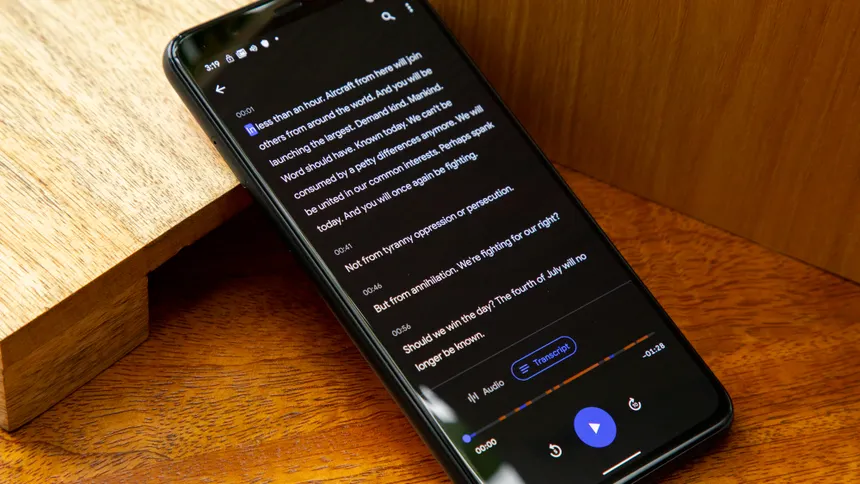
Why Force Dark Mode on Any App?
Android’s system-wide dark theme is great but not every app supports it. In 2025, millions still use legacy apps (think banking, enterprise tools, or retro games) stuck in blinding white.
Force Dark Mode flips the script:
- Saves OLED battery (black pixels = off)
- Reduces eye strain at night
- Uniform look across your entire phone
- No root or third-party apps required
Warning: Some UI elements may look slightly off (e.g., inverted images). Works best on text-heavy apps.
Step-by-Step: Enable Force Dark Mode (All Android Devices)
Requires: Developer Options already enabled
→ How to enable Developer Options
Works on Android 11–15 | Pixel, Samsung Galaxy, OnePlus, Xiaomi, Realme, Nothing Phone
1. Open Developer Options
- Go to Settings
- Navigate to:
- System > Developer options (Pixel, stock Android)
- Additional settings > Developer options (Samsung, OnePlus)
- About phone > Developer options (some Xiaomi)
Can’t find it? Search “developer” in Settings.
2. Enable “Override force-dark”
- Scroll down to Hardware accelerated rendering section
- Find Override force-dark (or Force Dark Mode)
- Toggle it ON
Done! Light apps now instantly switch to dark.
Before & After: Real Examples
| App Type | Before (Light) | After (Force Dark) |
|---|---|---|
| Old Banking App | White background, black text | Dark gray background, white text |
| PDF Reader | Bright white pages | Charcoal pages (text readable) |
| Legacy Game Menu | Blinding menus | Dark theme (gameplay unchanged) |
Note: Images and videos stay in original colors only UI elements are darkened.
Pro Tips for Perfect Force Dark Results
| Setting | How to Use | Benefit |
|---|---|---|
| System Dark Theme | Settings > Display > Dark theme → ON | Base layer for Force Dark to work |
| Animation Speed | Set to 0.5x in Developer Options | Snappier dark transitions |
| Per-App Override | Android 14+ lets you force per app (Pixel only) | Keep some apps light (e.g., photo editors) |
| Battery Saver | Auto-enables Force Dark on low battery | Extra OLED savings |
How to Disable Force Dark Mode
- Re-open Developer Options
- Toggle Override force-dark → OFF
- (Optional) Turn off system dark theme for full light mode
Security Note: No risk. It’s a display tweak, not a system hack.
Common Questions (FAQ)
Q: Does Force Dark Mode work on Android 15?
Yes! Fully supported on Pixel 9, Galaxy S25, OnePlus 13, and more. Enhanced contrast in One UI 7.
Q: Why do some images look weird?
Force Dark inverts UI colors. Photos/videos are exempt. Use native dark mode if available.
Q: Can I force dark mode per app?
- Pixel (Android 14+): Yes long-press app > App info > Set theme > Dark
- Samsung/OnePlus: Use Good Lock or Theme Park modules
Q: Does it drain more battery?
No less! Especially on AMOLED screens (Galaxy, Pixel, OnePlus). Black pixels use ~0 power.
Q: What if the option is missing?
Update Android. On Android 10 or below, use DarQ (requires root or ADB).
Final Checklist
- [ ] Developer Options enabled
- [ ] System Dark Theme ON
- [ ] Override force-dark toggled ON
- [ ] Tested on a light-only app
- [ ] Adjusted per-app theme (if needed)